ToonArt Photo Cartoon Yourself
- 4.7
- Rating
- 10.00M
- Installs
- Free
- Price
 Analysis by App-foxy
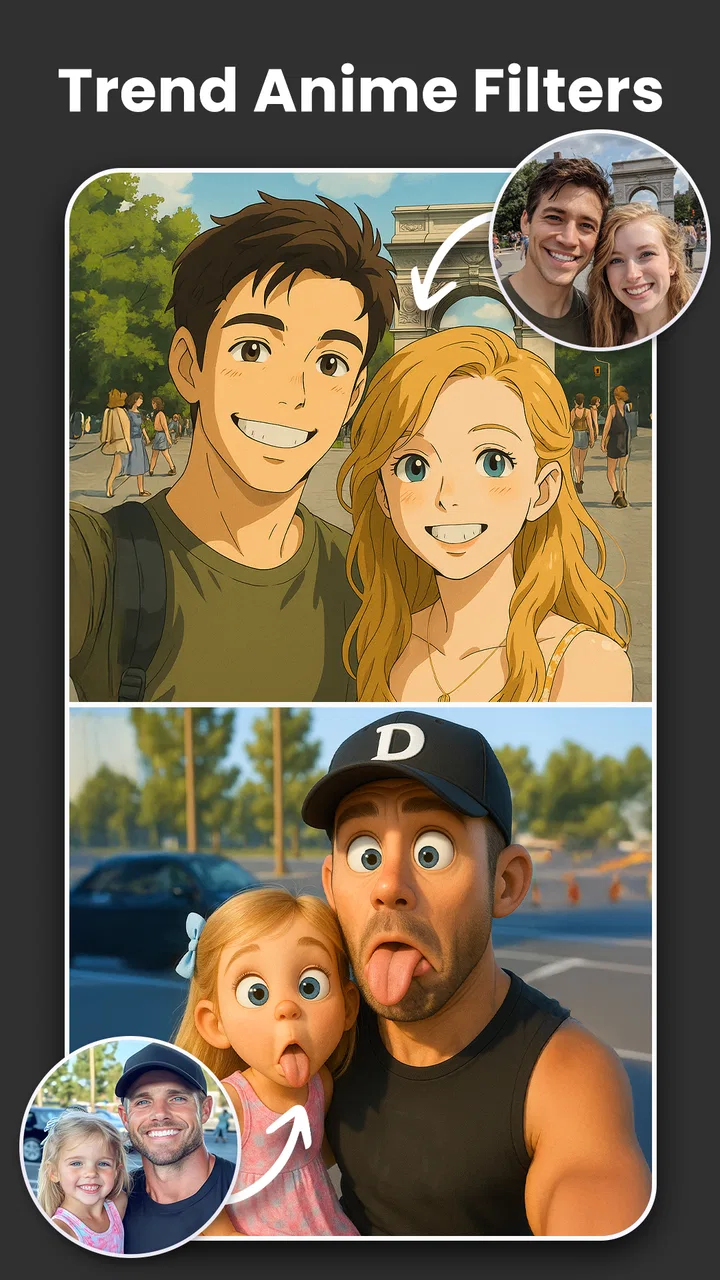
I tried ToonArt Photo Cartoon Yourself as a photography app rather than treating it as just another novelty filter. Its main appeal is immediate: take an ordinary portrait, choose a cartoon-inspired treatment, and turn it into something that feels made for a profile picture, message, story, or quick social post. The experience is aimed at people who want a visible transformation without spending time learning a full photo editor.
That simplicity is also what makes it worth examining carefully. Cartoon effects can look charming when the original photo has clear lighting and a readable face, but they can become artificial or uneven when the source image is dark, crowded, or heavily angled. I found the app most enjoyable when I treated it as a playful creative tool, not as a replacement for detailed retouching software.
How ToonArt fits into everyday photo editing
ToonArt comes from Lyrebird Studio and sits in the photography category. It is free to install, rated for Everyone, and works on Android devices running version 7.0 or later. The current version is 2.0.4.8. Its popularity is easy to understand: the app has passed 10 million installs and holds a 4.7 average from around 808 thousand ratings, with roughly 9.6 thousand written reviews.
You May Also Like

 Blood Strike: 2.5 Anniversary
Blood Strike’s Loadouts Turn Every Drop Into a Tactical Gamble
A close look at Blood Strike’s custom loadouts: how fast access to signature weapons reshapes its battle royale rhythm, rewards preparation, and narrows the gap between fights.

 Pandora - Music & Podcasts
Pandora’s Music Is Easy to Start, but Harder to Recover
Pandora’s strength is its low-effort path from a seed to a station. Its weak spot is how much confidence it asks you to place in connection, setup, and quiet recovery.

 8 Ball Pool
 Is Built on Rivalries, Rematches, and Routine
A close look at the rivalries, rematches, shared routines, and unanswered safety questions that turn a quick pool match into a persistent mobile community.

 Samsung Music
’s Quiet Strength Is Playing What You Already Own
Its reach comes less from spectacle than from dependable access to a personal library. That simplicity is both the app’s strongest retention engine and its ceiling.

 AccuWeather: Weather Radar
AccuWeather Review: A Quick, Clear Forecast for Everyday Decisions
For everyday plans, the best forecast is the one you can understand quickly. AccuWeather makes rain timing, radar, and local conditions easy to act on, with a few trade-offs.

 Hill Climb Racing
Why Hill Climb Racing Still Turns Crashes Into One More Run
A tiny car, a bumpy hill and one more upgrade: Hill Climb Racing keeps resurfacing because its simple chaos makes every near-miss feel personal.
More From Our News Desk



Those figures suggest that the basic idea connects with a broad audience, but they do not tell me whether every result will suit every face. In my use, the strongest results came from front-facing portraits with one obvious subject. A clean background helps the face remain the focus, while soft, even light gives the cartoon treatment more information to work with.
The practical workflow is straightforward. I can begin with a photo already saved on the phone or use the camera approach when I want to create a new portrait. From there, the fun is in comparing visual styles rather than making dozens of tiny adjustments. That makes the app approachable for someone who normally avoids editing tools because sliders, layers, and technical terms feel like work.
A repeatable starting routine for portraits
For a more reliable result, I would make the photo choice part of the editing process rather than an afterthought. I start with a clear, well-lit portrait, make sure the face is large enough to read, and try a small selection of treatments before settling on one. This simple routine avoids wasting time trying to rescue an image whose lighting or angle makes the face difficult to interpret.
A realistic use is preparing a new profile picture before a group chat or social event. I might take a quick selfie near a window, choose a few versions, then inspect each at the size it will actually appear on a phone. The most striking preview is not automatically the best choice: a subtler result may remain recognizable after a platform crops it into a small circle.
The same habit helps when creating a themed invitation or a casual image to send to friends. I would keep the original photo available and treat the cartoon version as a separate creative option, not as a replacement. That way, I can compare the two later or use the original if the edited face feels too exaggerated for the occasion.
A useful everyday example is a group chat where everyone is sharing profile images for a casual event. Instead of searching for a stock avatar, I can take a reasonably well-lit selfie, try a few cartoon treatments, and save the version that still looks recognizably like me. The process is quick enough for that situation, and the result feels more personal than a standard sticker.
What the cartoon approach does well
The app’s best quality is the speed of the visual change. A normal portrait can become more expressive without requiring me to understand masks or manual drawing. This is especially useful for social posts where the image needs a strong first impression on a small screen. The exaggerated finish can also hide minor skin texture or an unremarkable background more effectively than a restrained beauty filter.
I also like the way the concept encourages experimentation. A photo that looks ordinary in the camera roll may become surprisingly effective after a stylized conversion. Rather than asking whether the face is technically perfect, I look for the version that communicates a mood: cheerful, playful, dramatic, or deliberately over-the-top.
One practical tip is to prepare the source image before applying the effect. I get better consistency by cropping out distracting edges, keeping the eyes visible, and avoiding sunglasses or hands covering the face. If the app produces a strange result, I first change the photo instead of assuming the filter has failed. That small workflow adjustment makes a bigger difference than repeatedly applying the same effect.
Where it differs from regular editors
Compared with a conventional editor such as a general-purpose retouching app, ToonArt is less about precise control and more about a finished visual idea. A traditional editor is the better choice when I need exact color correction, selective sharpening, careful object removal, or a consistent look across a large set of photos. ToonArt is better when the transformation itself is the point.
It also occupies a different space from simple social-network filters. Those built-in tools are convenient for temporary stories, but a dedicated cartoon editor gives me a more deliberate place to test a portrait and decide whether it deserves to be saved. I can work from an existing image rather than having to create the content inside a social platform.
There is a trade-off here. The more automated the transformation, the less control I have over individual facial details. If I want my own choice of line thickness, eye shape, color balance, or background treatment, a manual editor will usually be more satisfying. ToonArt makes sense when I value speed and personality over precision.
Small workflow choices that improve results
One non-obvious lesson is that the best source image is not always the most polished selfie. A natural expression with clear facial separation can translate better than a heavily posed image with dramatic shadows. I would test two or three different photos of the same person before judging the app’s style. This separates a weak source image from a genuinely unsuitable effect.
For a profile picture, I would leave extra space around the head during the original capture. Many profile areas crop images into circles or squares, so a tight portrait may lose the hair, chin, or visual balance after upload. Creating a little breathing room gives the cartoon result a better chance of surviving the next crop.
For a group image, I would be more cautious. Automated face treatments may not give every person the same level of detail when faces are small or partially turned away. A single-person portrait is the safer choice if the final image needs to look polished. Group photos can still be entertaining, but I would treat them as experiments rather than guaranteed finished artwork.
Another useful approach is to compare the edited result with the original before sharing it. Cartoon effects can make expressions look stronger than intended, and a smile that seemed subtle in the original may become exaggerated. I prefer choosing the image that still feels like the person, even if another version is more dramatic.
Settings and choices worth checking
Before committing to an edit, I check the source image itself, the framing, and the final destination. These are simple choices, but they affect whether the result works as a small avatar, a message attachment, or a larger post. If the face sits too close to an edge, I would go back to a roomier original rather than expect the cartoon effect to fix the crop.
I also pay attention to purchase prompts. The app is free to start, and optional in-app purchases range from $2.00 to $54.99 per item. I would pause before confirming any offer and decide whether the available free experience already suits the task. Someone who only wants an occasional portrait may have a different threshold from a frequent creator exploring the app more regularly.
For people wondering whether they need a complicated editing routine, I would say no: the point is to keep the workflow simple. Choosing a clear photo, comparing a few looks, and reviewing the crop before saving are more useful than repeatedly editing a poor starting image. The trade-off is that this lightweight approach cannot provide the fine control of a layered editor.
Trust, controls, and moments that deserve attention
Because this app works with personal photos and faces, I pay attention to user choice at every stage. The important moment is not only the final filter; it is also when I select an image, open the camera, save a result, or decide to share it elsewhere. I want those actions to feel deliberate rather than accidental.
I recommend starting with a non-sensitive test image if you are unfamiliar with the app. That lets you understand the editing flow before choosing private family photos, identity documents, workplace images, or pictures containing other people. A test image is also useful for checking whether the output style matches your expectations before you invest time in a larger project.
When an app handles portraits, I avoid uploading images of friends or children without their permission, even when the intended use is harmless. This is not a limitation unique to ToonArt; it is simply good photo etiquette. A playful cartoon can still be recognizable, and sharing the result can move it beyond the original private context.
I also keep the distinction clear between editing and sharing. Creating a cartoon portrait does not require me to publish it immediately. I can review the result, decide whether the face looks right, and choose the destination myself. That pause is valuable when the image is going to represent me publicly or be used as a profile photo.
Who will enjoy it, and who should skip it
I would recommend ToonArt to casual creators, families looking for a fun portrait activity, and anyone who wants a distinctive avatar without learning a complex editor. It is also a good fit for quick social content, themed group chats, invitations, and personal experiments where a slightly exaggerated look is welcome.
It is less suitable for professional photographers, brand managers, or anyone who needs repeatable control over a complete visual identity. If a client expects exact skin tones, realistic facial proportions, or careful retouching, I would choose a more controlled tool. The same applies if I need to edit landscapes, products, documents, or architecture; a face-focused cartoon treatment is not the right starting point for those jobs.
I would also skip it when privacy sensitivity is the main concern and I am not comfortable making a personal portrait part of an app-based editing workflow. In that situation, an offline editor with clearly understood local controls may be a better fit. The right choice depends less on how entertaining the effect is and more on how comfortable I am with the image journey from selection to saved result.
My final view after using it
ToonArt succeeds because it removes the intimidating parts of photo editing. I can begin with a familiar portrait and quickly explore a cartoon version that feels more expressive than the original. Its strongest use is not perfect realism; it is turning an everyday face into a memorable visual for casual sharing or personal identity.
The limitations are just as clear. Results depend heavily on the source photo, automated styles do not offer the same precision as a full editor, and the free experience includes optional purchases that deserve attention. I would not use it for sensitive images casually, and I would not promise the same quality for every group shot or difficult lighting condition.
For me, the sensible way to use it is selective: choose a clean portrait, test a few treatments, inspect the face and crop, and share only after deciding that the result still represents the person. The best reason to install ToonArt is controlled experimentation, not blind automation. If that balance suits you, this free photography app is an enjoyable way to make profile images and social posts feel more personal. If you need detailed editing control or prefer to keep face-based work entirely within a familiar offline workflow, a traditional alternative will be the wiser choice.
FAQs for ToonArt Photo Cartoon Yourself
01What is ToonArt Photo Cartoon Yourself?
ToonArt Photo Cartoon Yourself is a photo-editing app designed to transform ordinary pictures into cartoon, anime, sketch, and digital-art-style images. It combines one-tap effects with additional editing tools, allowing you to experiment with different visual styles without needing professional design experience. The app is mainly aimed at users who want attractive profile pictures, social media posts, avatars, or creative edits made quickly from a phone.
02How do I create a cartoon image with ToonArt?
To create a cartoon-style image, select a photo from your gallery or take a new one with the camera, then browse the available cartoon or artistic filters. After applying an effect, you can usually adjust the result with editing controls, backgrounds, overlays, text, or other creative elements, depending on the version installed. For the best outcome, use a well-lit portrait with a clear face and limited background distractions.
03Is ToonArt Photo Cartoon Yourself free to use?
ToonArt can generally be downloaded and used without an upfront payment, but some filters, templates, editing tools, or export options may be restricted to premium users. The free experience may also include advertisements or limitations on certain features. Before subscribing, carefully review the in-app pricing, trial conditions, renewal terms, and cancellation instructions shown through the Google Play Store or Apple App Store.
04Does ToonArt require an internet connection?
An internet connection may be needed for downloading the application, loading certain effects, displaying advertisements, processing cloud-based features, or accessing newly added content. Some basic editing functions may work offline after the necessary resources have been installed, but availability can vary by device and app version. If you plan to edit while traveling, test the main tools offline before relying on them.
05Is ToonArt safe, and what happens to my photos?
ToonArt is distributed through official Android and iOS app stores, but you should still check the permissions requested during installation and review the developer’s current privacy policy. Photo-editing apps may need access to your camera, photo library, and storage to import and save images. Avoid granting unnecessary permissions, and remember that images processed through online features could be uploaded temporarily, so do not use sensitive photos unless you understand the app’s data practices.
Pros
- Easy-to-use tools for turning selfies into cartoon-style portraits.
- Offers a broad selection of artistic effects and creative filters.
- Useful editing controls let you adjust results after applying a style.
- Suitable for social media profile pictures
- posts
- and stories.
- Regular content updates can provide fresh templates and effects.
Cons
- Many premium styles and tools require a subscription or payment.
- Some effects may produce inconsistent results with complex backgrounds.
- Exported images may include watermarks or quality limits on free plans.
- Processing can take longer on older phones or with high-resolution photos.
- Heavy use of filters may make portraits look repetitive or unnatural.

ToonArt Photo Cartoon Yourself
Gallery